-
How to Mark an Email as Safe in Outlook
How to Mark an Email as Safe in Outlook
Outlook on the Web (Outlook.com or Office 365)
- Open Outlook in your browser.
- Go to your Junk Email or Spam folder.
- Find and open the email you want to keep.
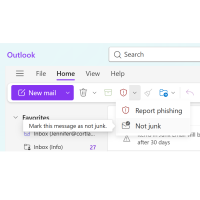
- At the top, you will see a Red Shield(Report)
 - click Not junk.
- If prompted, check Always trust emails from this sender.
The email will move back to your Inbox and future emails from that sender should stay out of Junk.
Outlook Desktop App (Windows)
- Open the Outlook app.
- Click the email you want to mark as safe.
- In the top menu, select Home.
- Click Junk.
- Choose Never Block Sender.
Optional:
- To trust an entire company or domain, choose Never Block Sender’s Domain instead.
Outlook App on Mobile (iPhone/Android)
- Open the Outlook app.
- Go to the Junk folder.
- Open the email.
- Tap the 3 dots (•••) menu.
- Select Move to Inbox or Not Junk.
Add a Sender to the Safe Senders List
In Outlook Desktop:
- Go to Home → Junk → Junk E-mail Options.
- Open the Safe Senders tab.
- Click Add.
- Enter the email address or domain.
- Click OK.
Example:
example@email.com@company.com
Tips
- Check your Junk folder regularly for missing emails.
- Add important contacts to your Outlook Contacts list.
- If emails still go to Junk, ask your IT department to whitelist the sender.
-
Jennifer Reminick Manager of Communications & Marketing
- May 19, 2026
- (607) 756-2814
- Send Email